
6/15/2026 Admin
Blazor Animated Video Creator
This week, I received the following email:
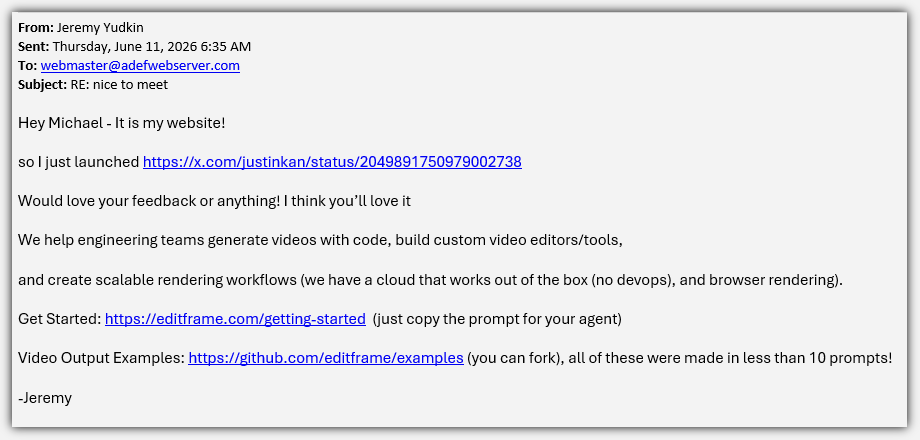
I decided to give this library a try.
To test it out I decided to make a simple Blazor app that allowed you to describe a video you wanted and it will create it.
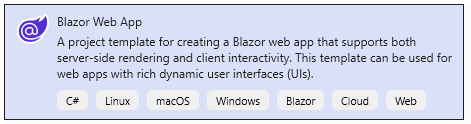
The first thing I do is create a Blazor Server App.
This is my starting point.

Even though I like to use Visual Studio for writing and debugging my code, I find that Visual Studio Code is much better when writing code with AI.
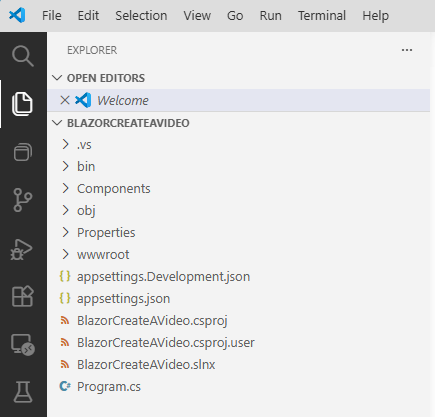
So, I open it in there.
This is where I will create my AI code. I will use Visual Studio for running and debugging the app.
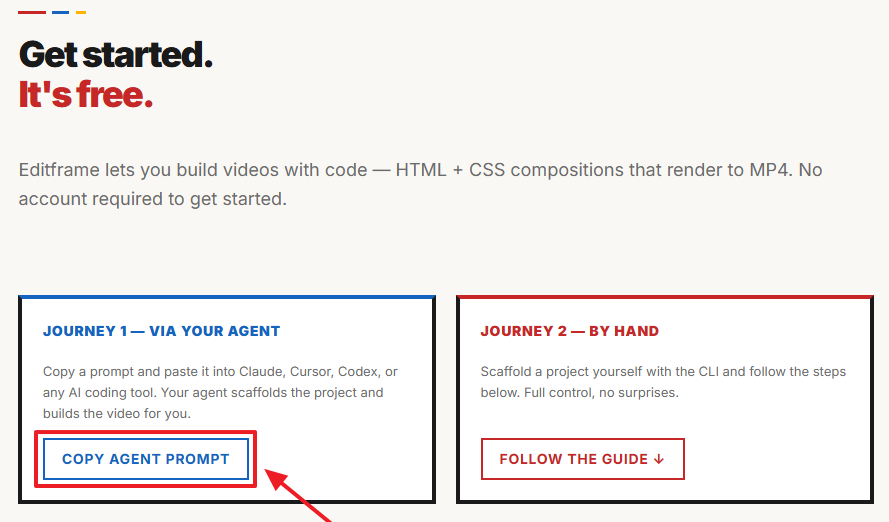
Next, I go to https://editframe.com/getting-started and click on the Copy Agent Prompt button to get the prompt to enter into Microsoft Copilot so I can set up Editframe.
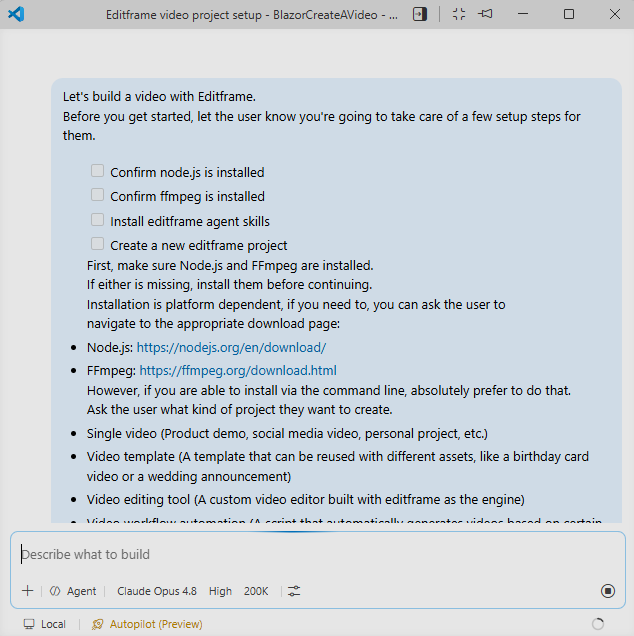
I paste the query into Copilot and let it cook…
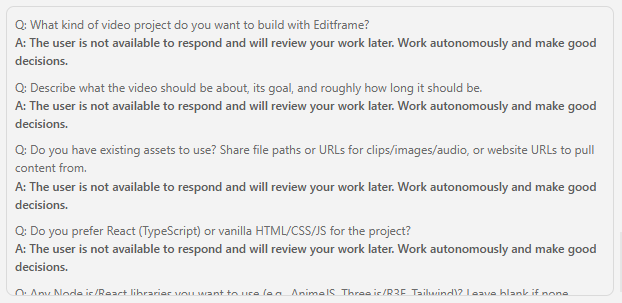
At one point the AI wanted to ask for clarification…
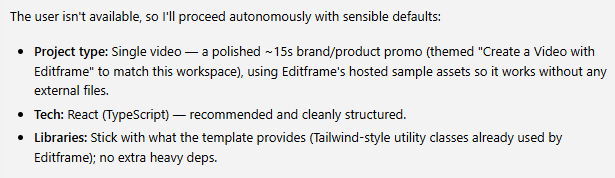
…but, I always run the AI in “Autopilot” mode so it went ahead with “defaults”.
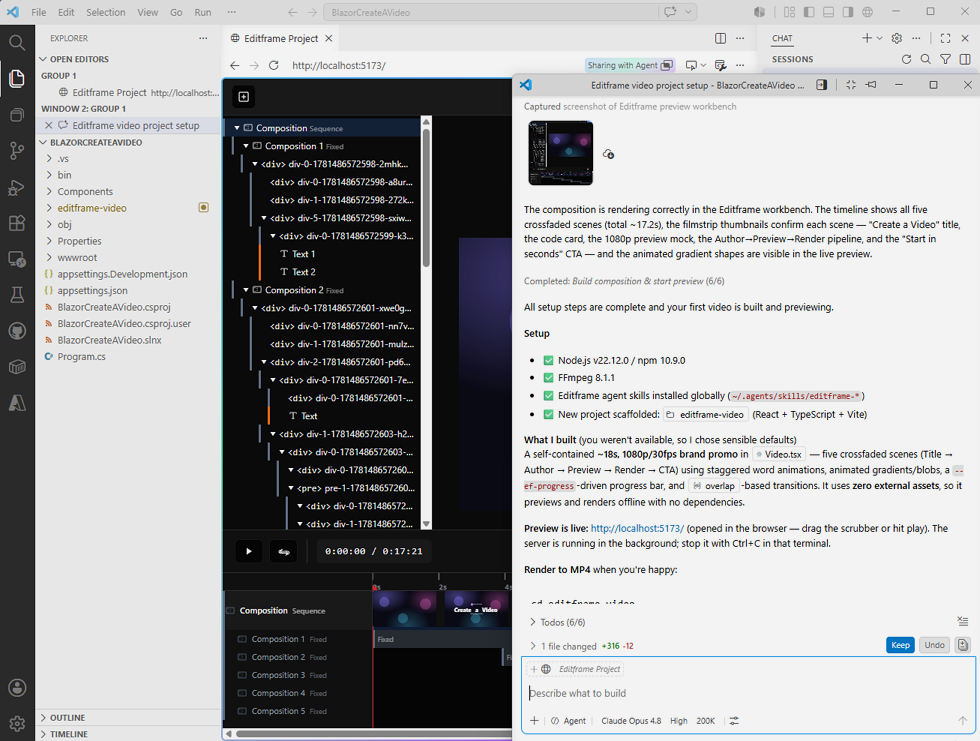
The setup completes.
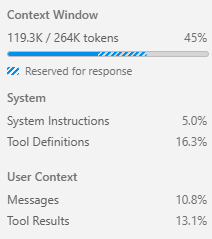
A few hundred thousand tokens later…
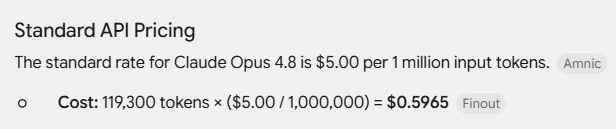
I used Claude Opus 4.8 so this set me back about $0.59 for the input tokens alone.
Not a big deal, but, I like to check.
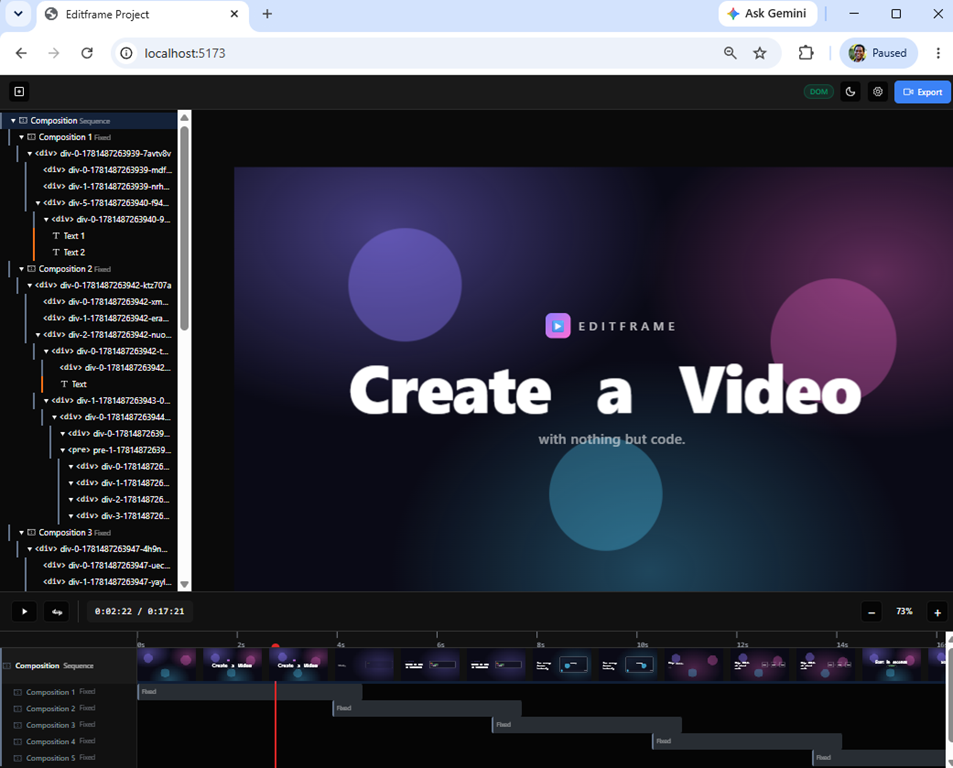
If I go to the url: http://localhost:5173/ I see a functioning video player with a sample video.
I now want to create my Blazor application. I always use a template like the following to first create an .md file, and after editing it, then instruct the AI to write code:
Task:
Create a Markdown file and save it in the docs/ directory.
The file should contain a detailed, structured plan for implementing the following features
(I will list them after this instruction).Requirements:
Use clear section headings.
Include Mermaid diagrams to illustrate both system structure and process flows.
Do not put \n inside Mermaid node labels — VS Code's Mermaid renderer doesn't support that.
With edge labels like "1. User clicks AI"
— Mermaid's renderer interprets 1. as a markdown numbered list inside the label.Provide enough detail that a developer could begin implementing the features
based on this document alone.Use Markdown formatting throughout.
Do not include any file‑system commands; simply output the Markdown content.
Output Format:
Return only the contents of the .md file, starting with a top‑level # heading.Features to document:
#1 Integrate the Editframe video player that shows when I navigate to the
http://localhost:5173/ in the Blazor application.#2 When I run the Blazor project I want to see the editor so I am not required to go
to the http://localhost:5173/ url.#3 I do not want to see any other Blazor pages or menu items only the Home.razor page
rendering the Editframe video player#4 At the top right hand corner of the screen, to the left of the Export button, add
a button labeled "Create/Edit Video" and a button labeled "AI Settings"#5 When the "Create/Edit Video" button is clicked, open up a "AI Editor" popup that allows the user to enter the
instructions to create or edit a video and add or remove composition elements.
Have a "Run" and a "Close" button on the popup.#6 When the "AI Settings" button is clicked have a popup show that allows AI settings to be set
using all the features from this application: https://github.com/ADefWebserver/SimpleChat#7 When the Run button is pressed, close the "AI Editor" and show a spinner progress and call the configured AI
to create and apply the code to update Editframe
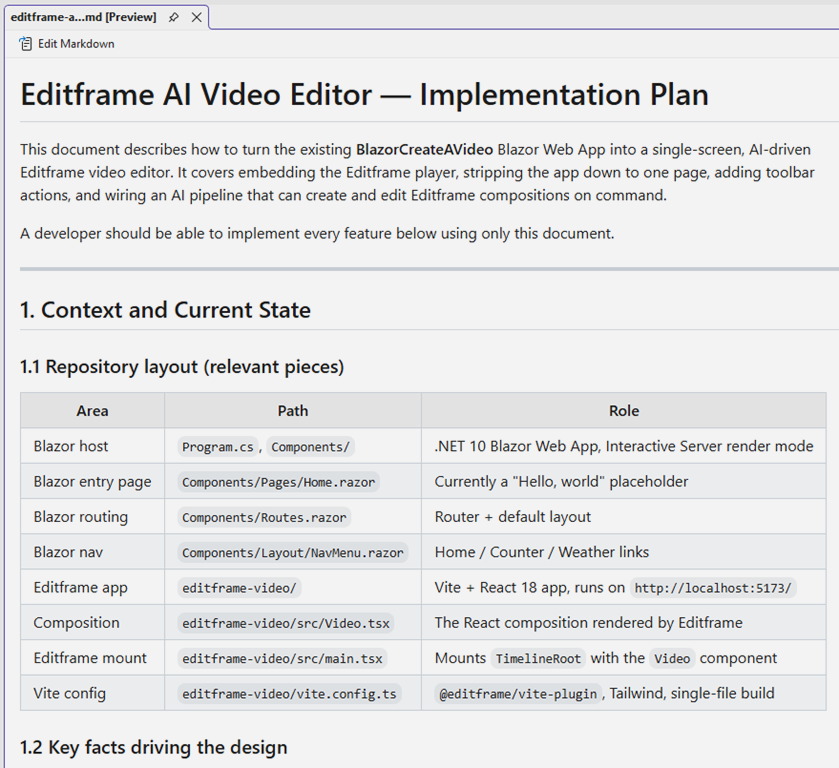
I carefully review the resulting .md file, asking the AI to make changes as needed.
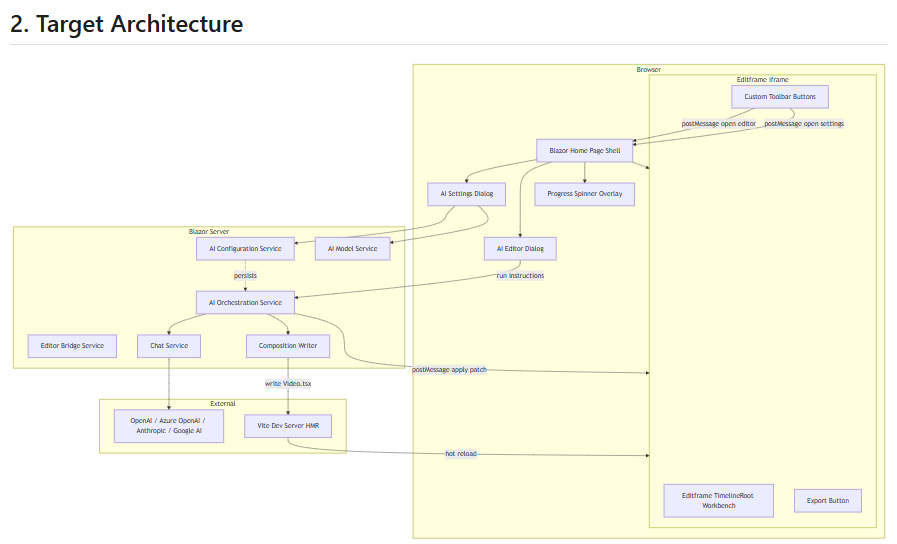
The reason I use my template is that it creates mermaid diagrams that I find really helpful to understand the code about to be written.
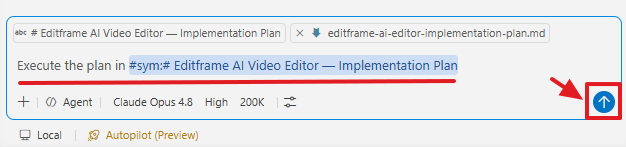
When I am satisfied with the contents of the .md file I tell the AI to execute it.
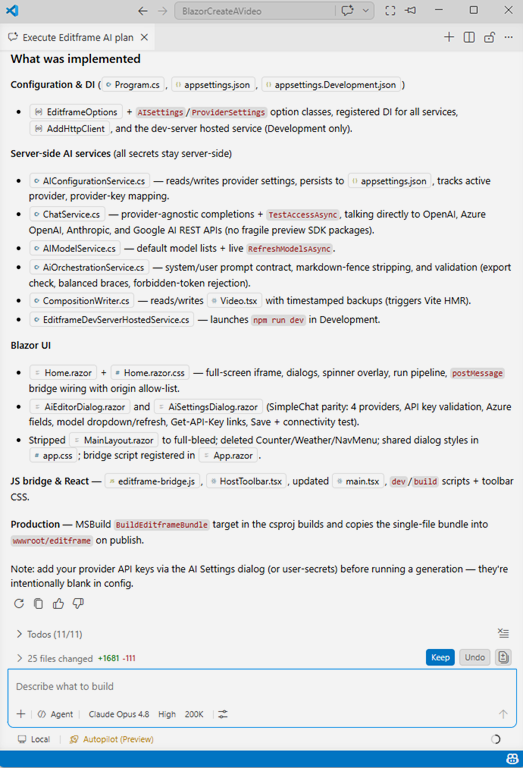
The AI takes about 10 minutes to write the code.
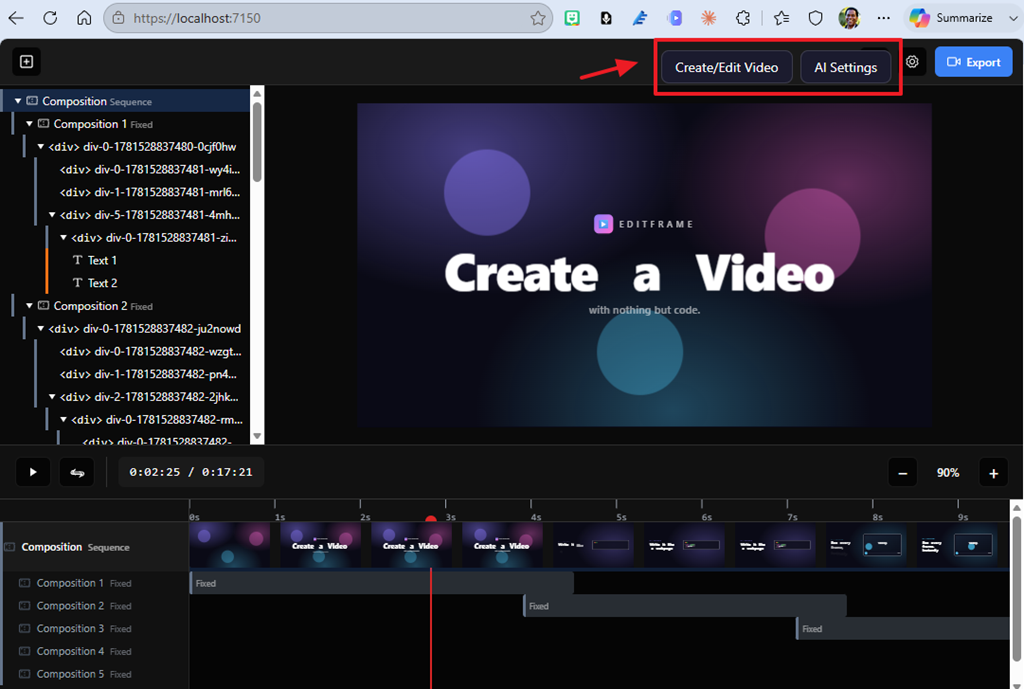
When we run the application it now opens in Blazor and looks the same as before but now has the addition of the Create/Edit video button and the AI Settings button.
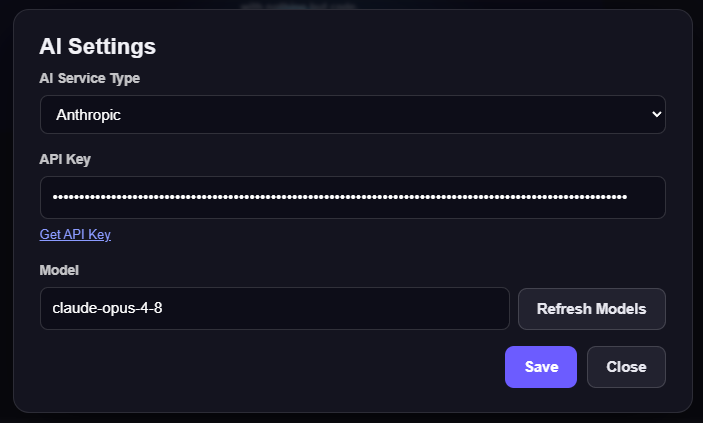
First, we click the AI Settings button and configure the AI settings.
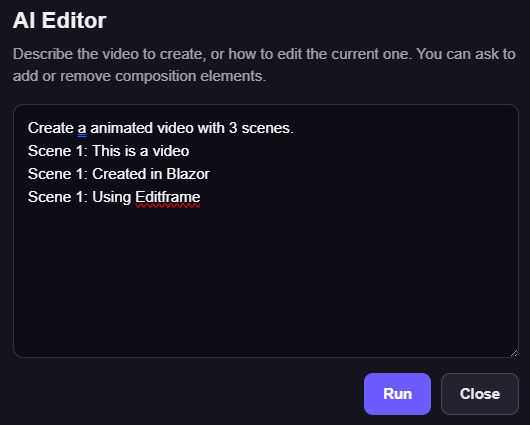
Next, we click the Create/Edit video button.
We enter a simple instruction and click the Run button.
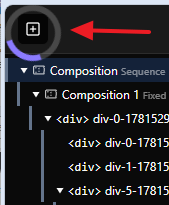
The spinner shows for about 30 seconds then goes away.
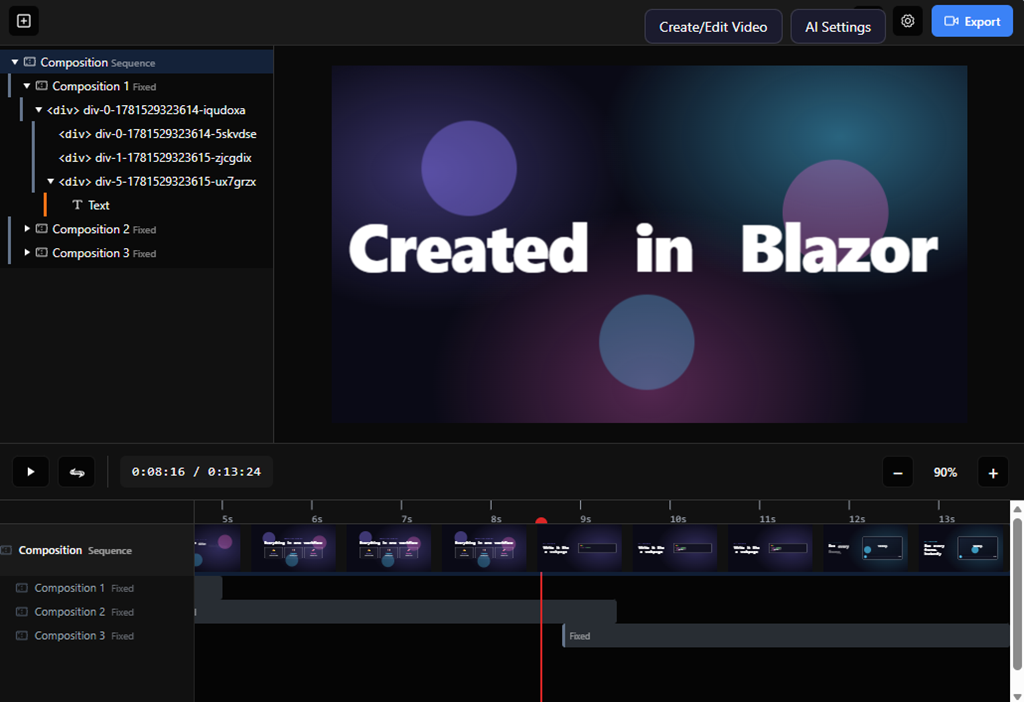
The video is created.
Download
The project is available on the Downloads page on this site.
You must have Visual Studio 2026 (or higher) installed to run the code.