
10/21/2026 Admin
Walk-Thru: Aspire Deploy, Deploy Any Aspire Solution To Azure From A Blazor Desktop App
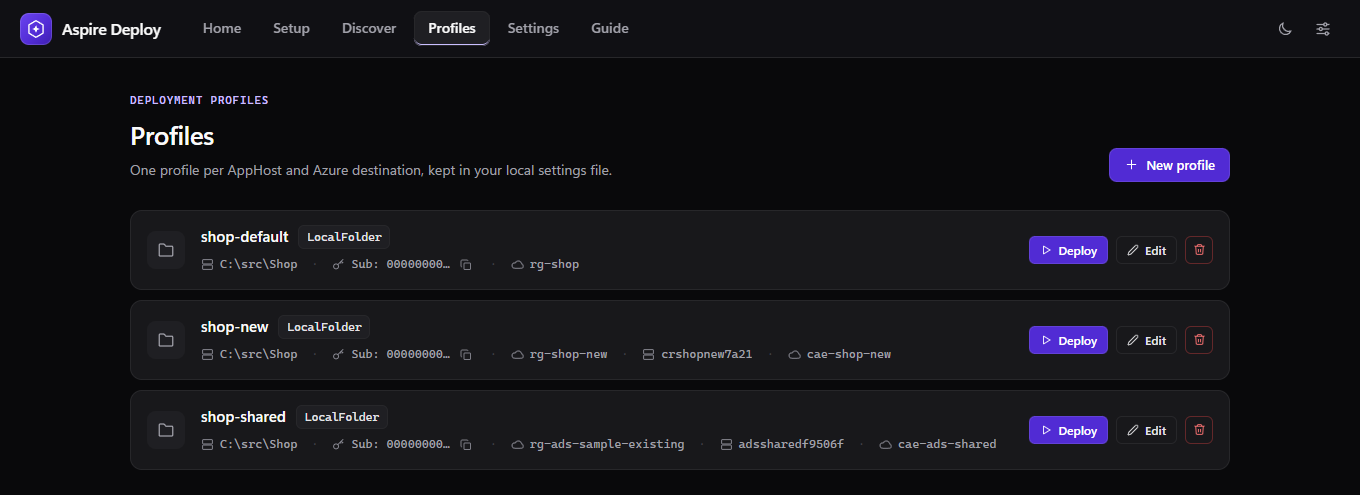
Aspire Deploy is a Windows desktop application (.NET MAUI Blazor Hybrid) that deploys any Aspire 13.x solution, from a local folder or a GitHub repository, to Azure Container Apps using aspire deploy and your own az login.
It discovers what the AppHost needs first (the AppHost kind, Aspire version, parameters, resources and deployment targets), and it saves everything as per-developer deploy profiles so a second deploy is one click.
In this article we will walk through the app, screen by screen.
Prerequisites
- Windows 10 1809 or later
- .NET 10 SDK with the MAUI workload
- Azure CLI, signed in with
az login - Docker Desktop or Podman, running
- Node.js (only for TypeScript AppHosts) and the GitHub CLI (optional, for private repositories)
You do not need to install the Aspire CLI. If the aspire on your PATH does not match the AppHost's SDK version, the app installs the matching one for you.
Your AppHost needs an Azure compute environment, for example:
// Aspire.Hosting.Azure.AppContainers packagebuilder.AddAzureContainerAppEnvironment("env");
Start the app (run the Windows Machine profile in Visual Studio), then open the Setup tab. Each tool is checked and shows Pass, Warn or Fail, along with the fix.
Create A Profile
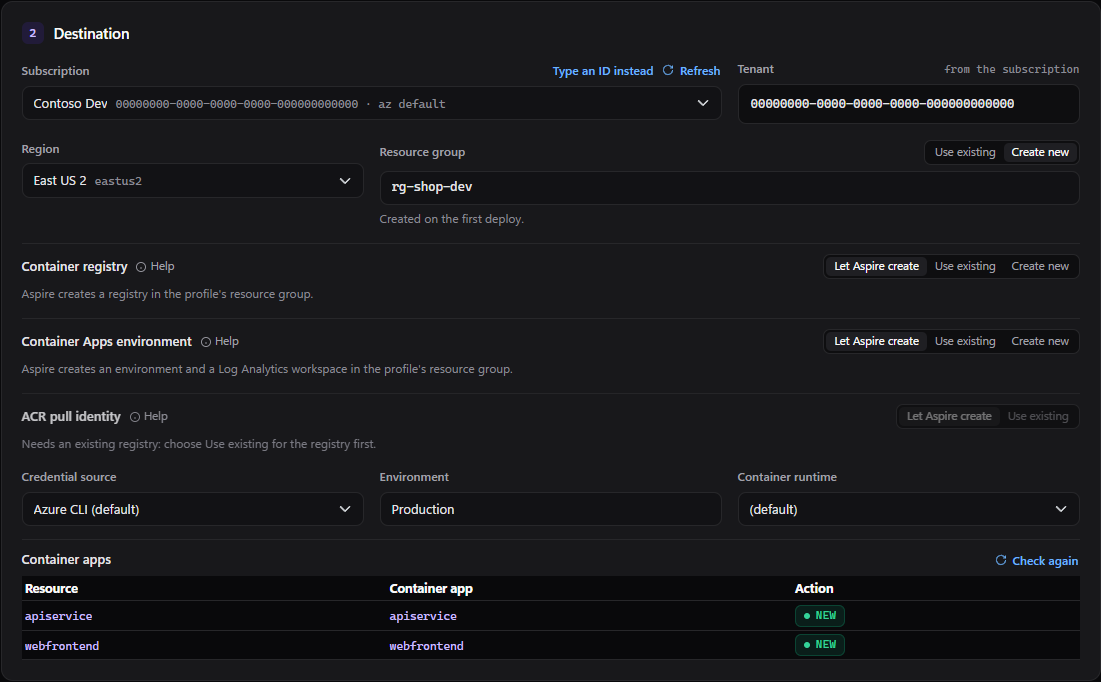
On the Profiles tab click New profile, give it a name, pick the solution folder (or <owner>/<repo> on GitHub), and click Discover. The app reads the AppHost, runs aspire do publish-manifest, and then shows the Destination and Parameters steps.
- The subscription, region and resource group lists come from your
az login. A resource group can be an existing one, or a new name that is created on the first deploy. - The Container apps table at the bottom previews each compute resource as New, Updates existing or Conflict, by comparing it with what is already in Azure. A conflict blocks the deploy.
Fill in the Parameters step and click Save profile.
Choose The Azure Resources
By default Aspire creates its own container registry, Container Apps environment and Log Analytics workspace in the profile's resource group. Each of those sections has three modes:
| Mode | What happens on deploy |
|---|---|
| Let Aspire create | Aspire creates it in the profile's resource group. |
| Use existing | Pick one from any resource group in the subscription, and the deploy uses it as is. |
| Create new | Type a name (a valid one is suggested), and the app creates it with az before the deploy. |
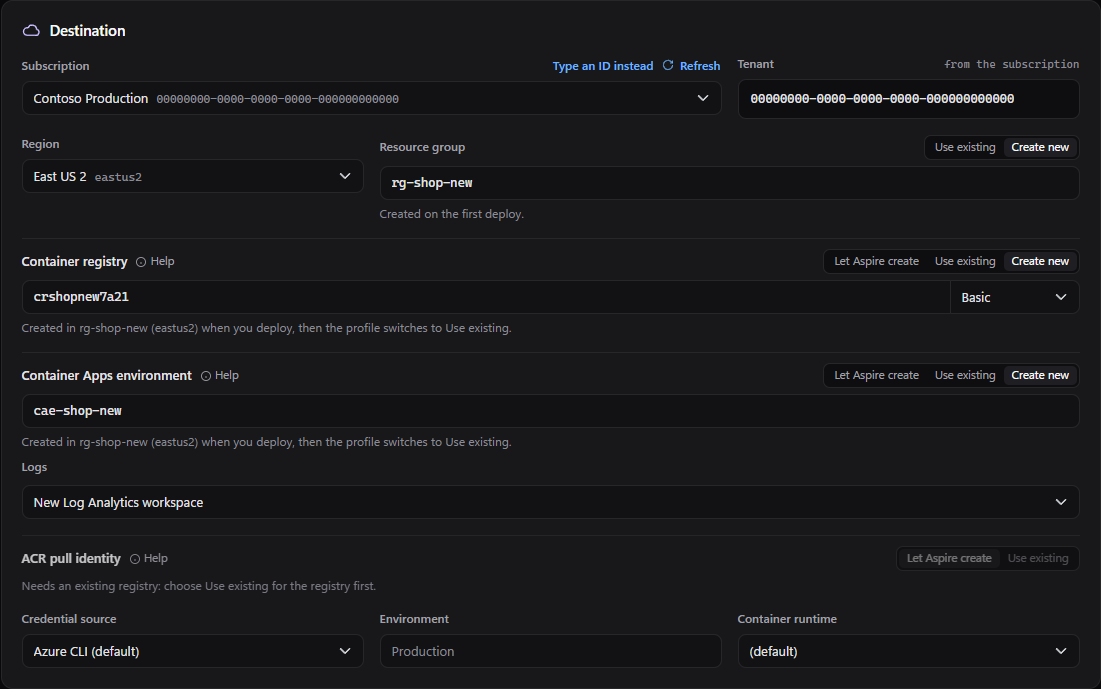
Here Create new is selected for the registry (with its SKU) and the environment (with where its logs go). Registry names are checked for availability as you type.
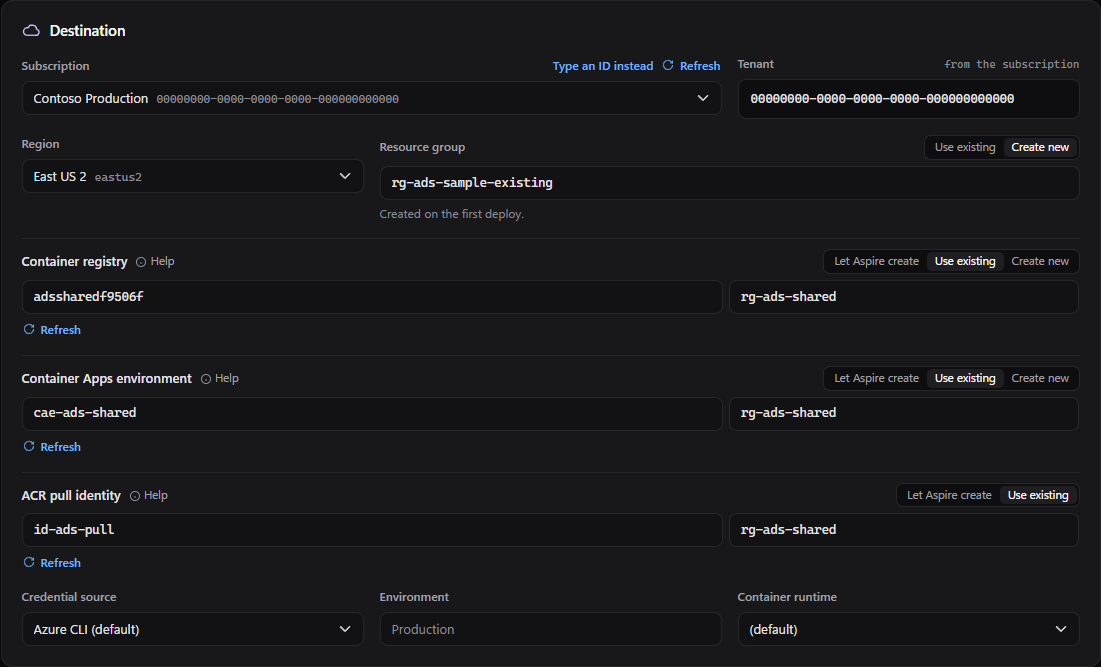
Here a profile uses an existing registry, environment and ACR pull identity from a shared resource group. With an existing pull identity that already has AcrPull, the deploy creates no identity and no role assignment.
Note: Your AppHost files are never edited. The "use existing" calls are added through a temporary overlay at deploy time, and it is removed when the deploy finishes.
Deploy
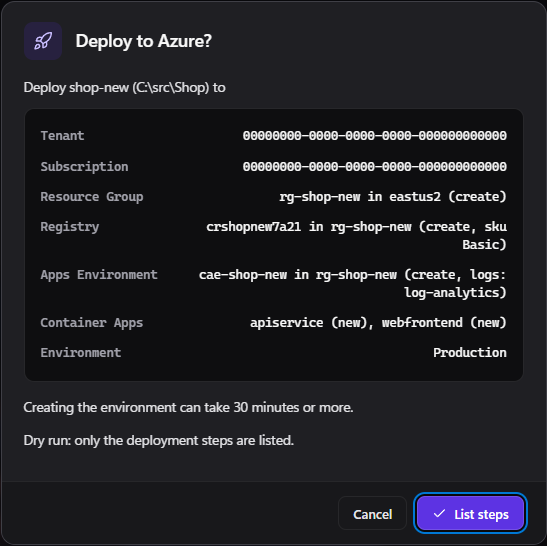
Click Deploy on a profile. Every deploy asks first, and shows exactly what will happen in Azure: what will be created, what already exists, and each container app as new or update.
Tick Dry run the first time. It lists the deployment steps and creates nothing.
The log streams while the deploy runs, and Cancel works at any point. When it finishes, the endpoints are in the log. A second deploy creates nothing new and just updates the apps.
The Guide And AI Help
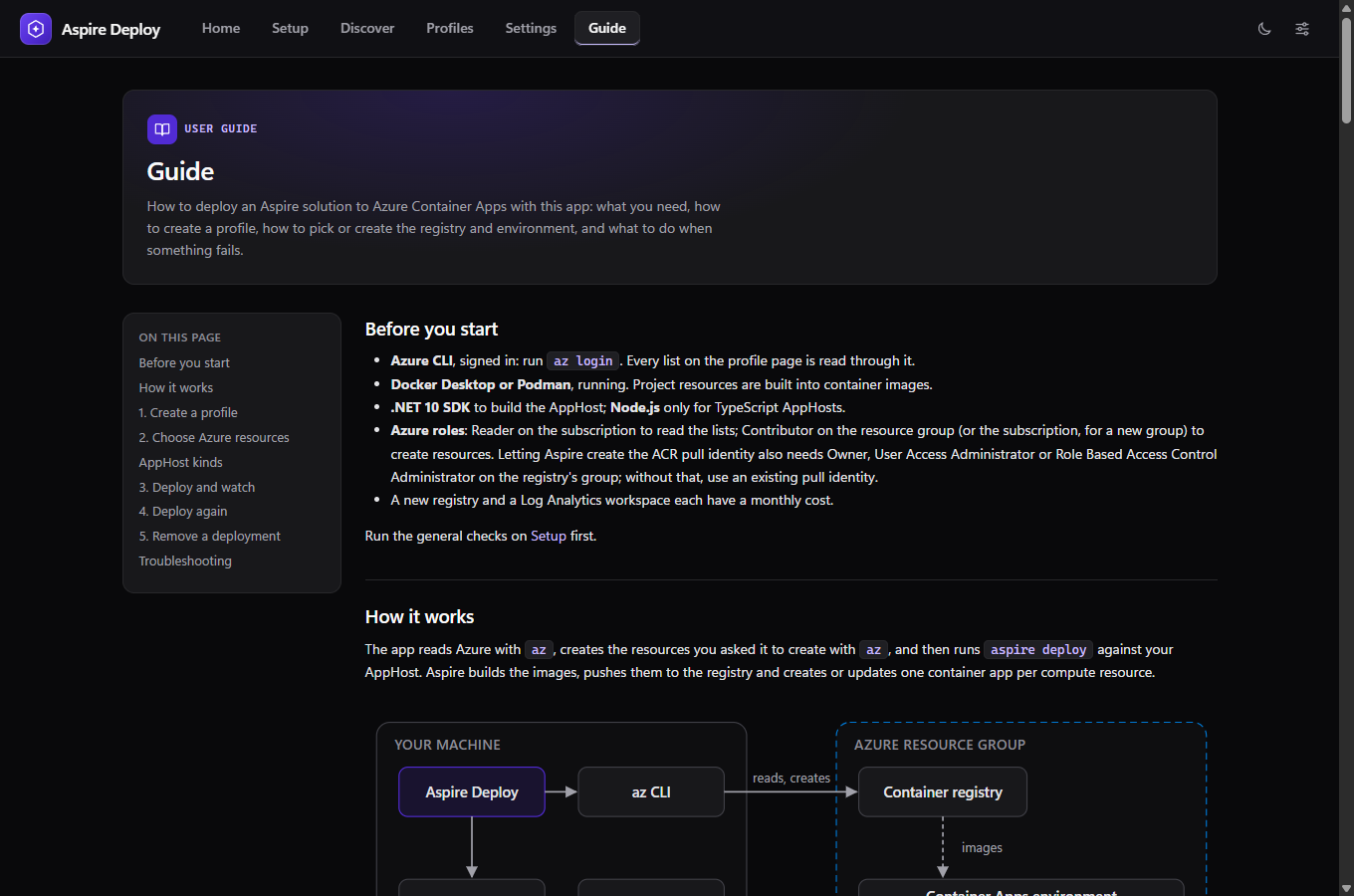
The Guide tab contains the full user guide: diagrams, every mode, naming rules, and a troubleshooting table that quotes each error message. Each resource section on the profile page has a Help link that jumps right into it.
Optionally, configure an AI provider (OpenAI, Azure OpenAI, Azure AI Foundry, Anthropic or Google AI) on the Settings page. An AI Help button then appears on failed results, Setup warnings and the log toolbar. It opens a chat beside the page, and every secret is replaced with [REDACTED] before anything leaves your machine.
Removing A Deployment
Delete the profile's resource group in Azure. Deleting a profile never touches Azure, and existing resources a profile picked from other resource groups are never deleted by the app.
Links
- The code is available on GitHub:
ADefWebserver/AspireDeployService - Aspire documentation